Floor Simulator 0.6

Size a Production Line From a Rate and a Routing

Type the rate and paste the routing. Floor Simulator gives the people, machines, Max Output, flow time and the Bottleneck, draws the value stream and the floor, and plans the ramp month by month. Every figure opens its math.

Runs offlineWindows app and one-file browser page.floorsim files you keep
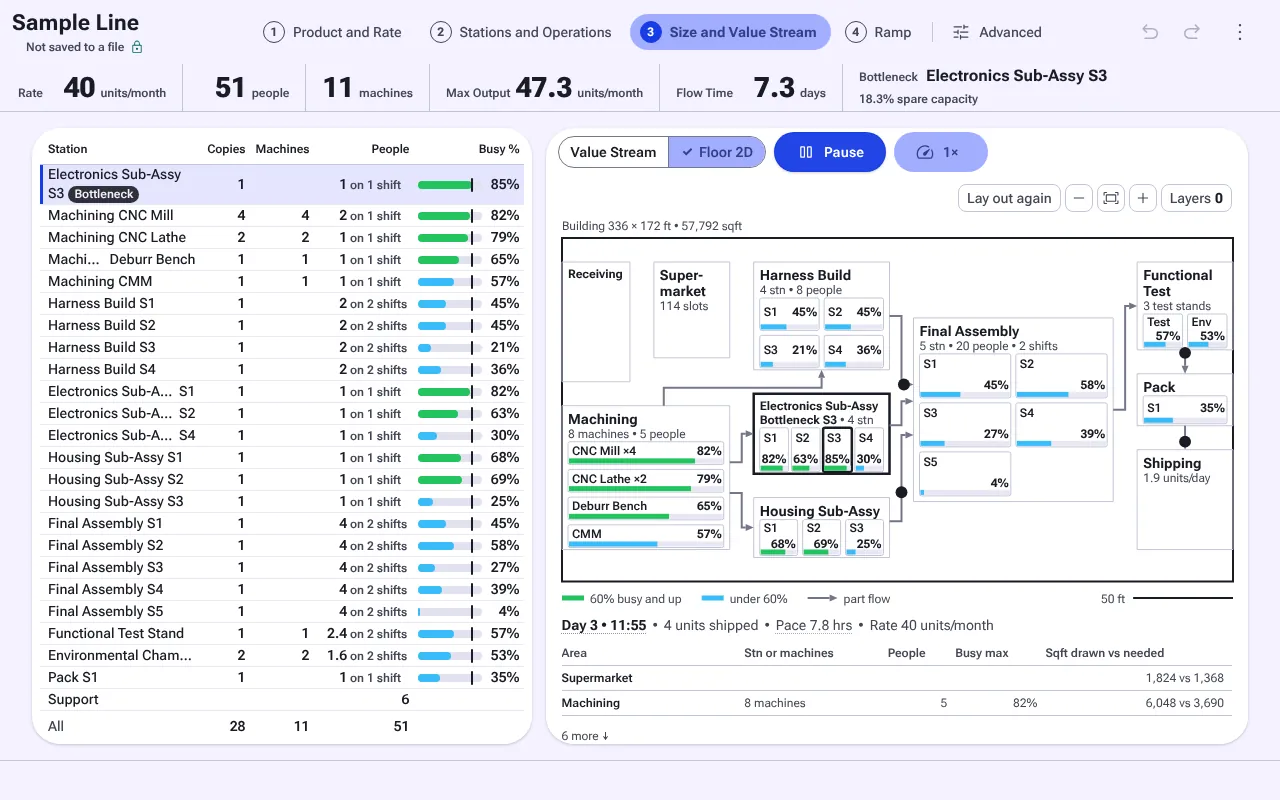
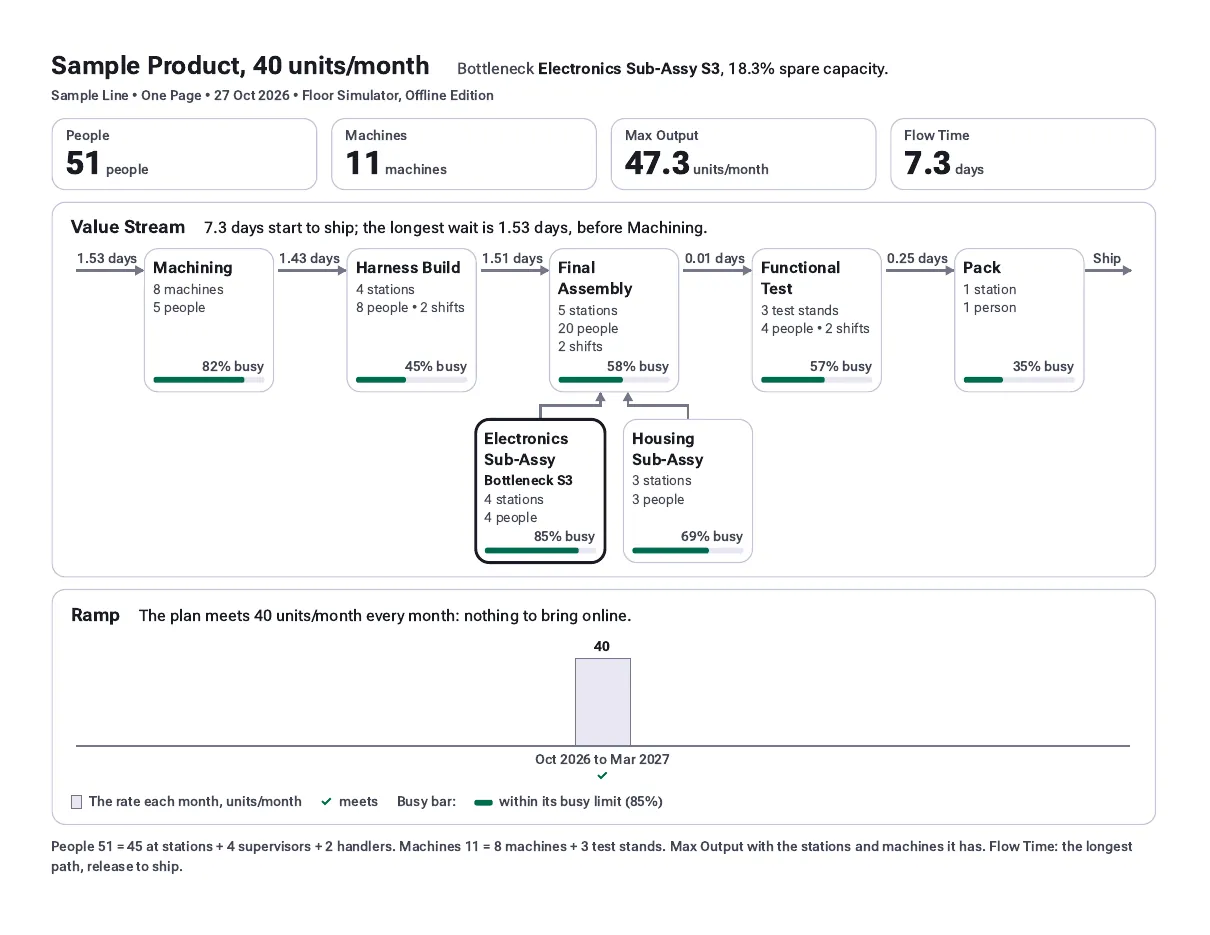
Floor Simulator's One Page view of the sample line at 40 units per month: 51 people, 11 machines, Max Output 47.3 units per month, flow time 7.3 days, Bottleneck Electronics Sub-Assy S3, the value stream and the ramp.
The 0.6 One Page on the sample line: the answer and the line on one sheet, ready for a VP.
0 clicksto Max Output and the Bottleneck: the answer line is on every step.1
0.27 sfrom a 7-row routing pasted from Excel to a sized line (median).2
About 5 sfrom a new rate on the sample to the whole line sized again (median 4.8 s).3
56 clicksfor 26 everyday sizing questions, each answer on screen with no scroll.4
The Problem

Sizing a Line Usually Means Spreadsheets or a Simulation Project

The questions are the same every time: how many people, how many machines, which station sets the rate, how long a unit takes, and what to add each month to get to the target. The usual tools answer them in different ways.

Spreadsheets

Flexible and everywhere. Takt, station loads, headcount and the ramp tend to live on separate tabs or files, and each one is built for the line in front of you.

When the rate or one work time changes, the change has to be carried through every tab that depends on it, and checked. There is no picture of the line or the floor unless someone draws one.

Discrete-Event Simulation (DES) Packages

Built for detail: a DES model is made of process logic, resources, queues and distributions, and it can show behavior a capacity model cannot, unit by unit.

A model is usually built and validated by someone trained in the package before it gives a first answer, and changing it takes the same skills. For early sizing, before the line exists, that effort comes first.

Floor Simulator

A capacity model of the whole line that sizes as you type. The rate and the routing are enough for a first answer, and every figure stays in step on every screen.

The value stream, the floor, cells and the ramp are part of the same model, so a change to one work time moves all of them. Detail such as setups, shifts or floor space is a setting you turn on when the question needs it.

How It Works

Four Steps, Always on Screen, in Order

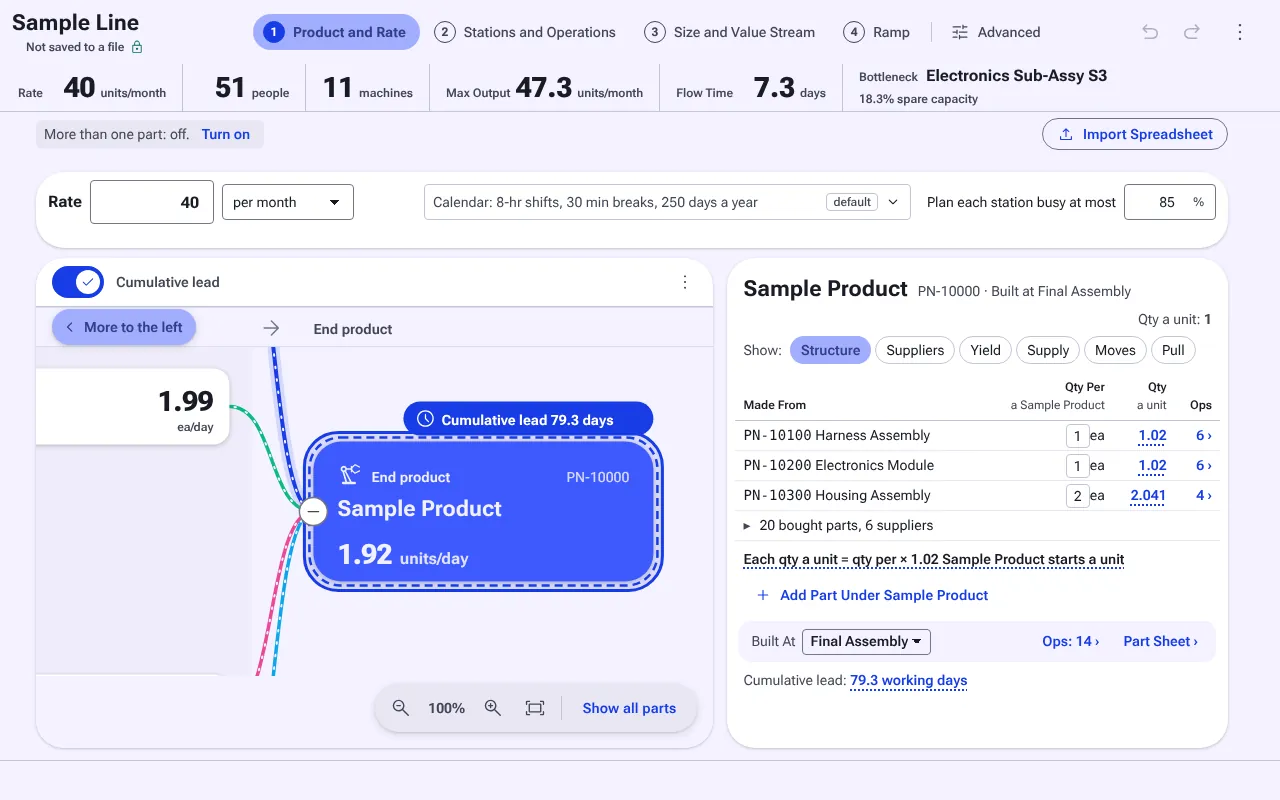
The step bar across the top holds the four steps, and the answer line under it reads the rate, people, machines, Max Output, flow time and the Bottleneck on every one. Ctrl+1 to Ctrl+4 open them. Each step fits a 1100 x 650 laptop window with no page scroll; a long list or picture scrolls inside its own card.5

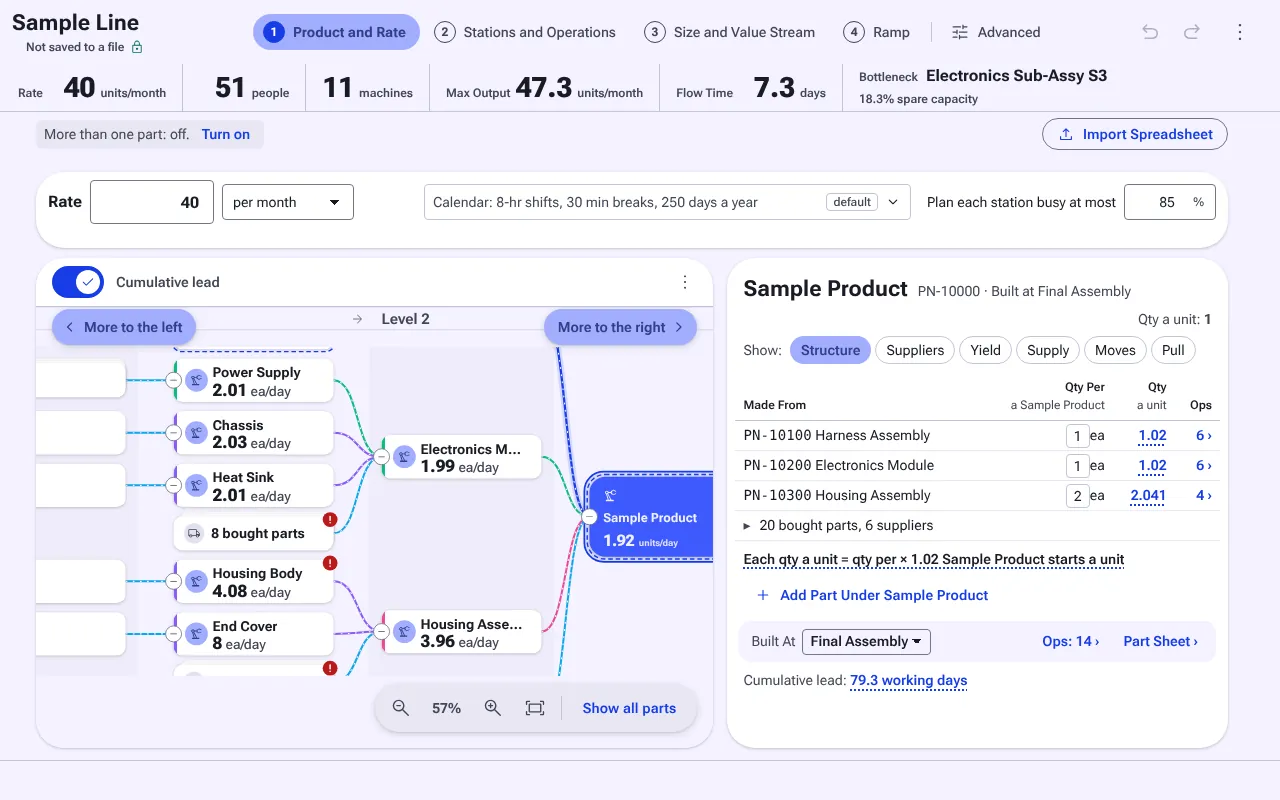
Step 1, Product and Rate: the rate box at 40 per month, the calendar, the 85 percent busy limit, the BOM tree and the Sample Product part table.

1Product and Rate

What you type

  • The rate, per month or per week, and the calendar: shift length, breaks, days a year.
  • The busy limit: "Plan each station busy at most 85%". Empty means none.
  • The product as a BOM tree: made and bought parts, qty per, where each is built.

What you get

  • Takt from the rate and the calendar, before any station exists.
  • The answer line across the top, sized as soon as there is work to size.
  • Cumulative lead: the chain of parts, bought and built, that sets the end product's lead in days.
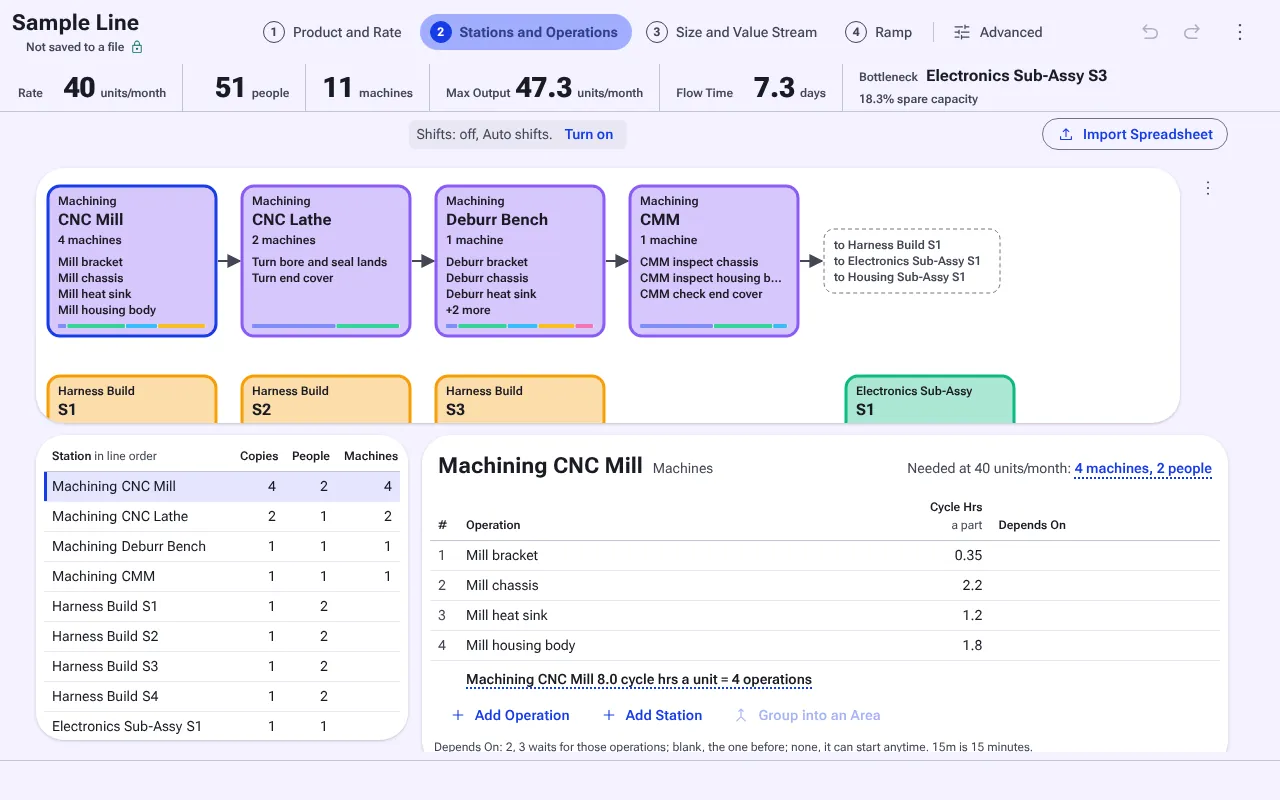
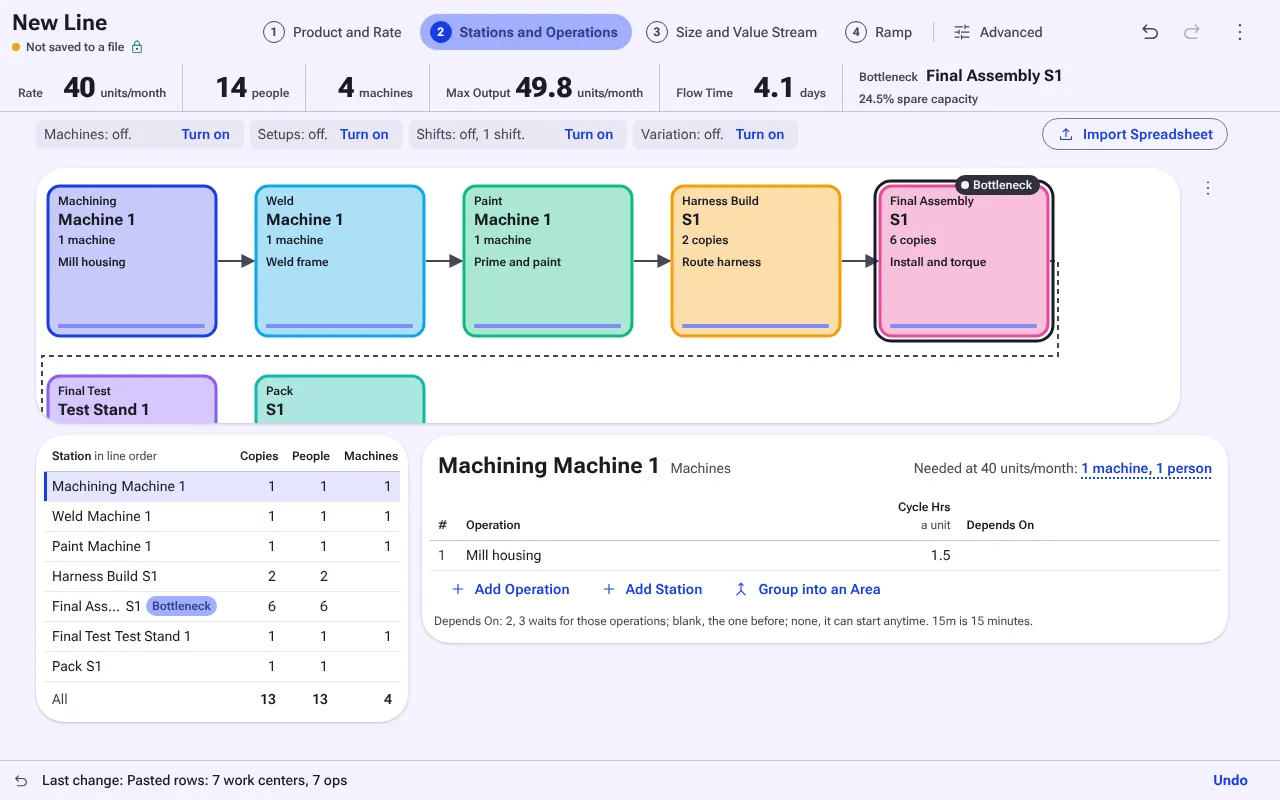
Step 2, Stations and Operations: the routing picture with a box per station, the station list with copies, people and machines, and the CNC Mill operations grid.

2Stations and Operations

What you type

  • A station a row, and its operations with Work Hrs (15m is 0.25 hrs).
  • Depends On: blank is after the one before, "none" can start any time, "2, 3" waits for operations 2 and 3.
  • Or nothing at all: paste the routing from Excel and the rows land here.

What you get

  • A picture of the routing: a box a station, forks where stations work side by side, an arrow where they join.
  • Copies, people and machines for each station at the plan's rate, updated with each edit.
  • A loop or a missing operation number refused in words, with nothing written.
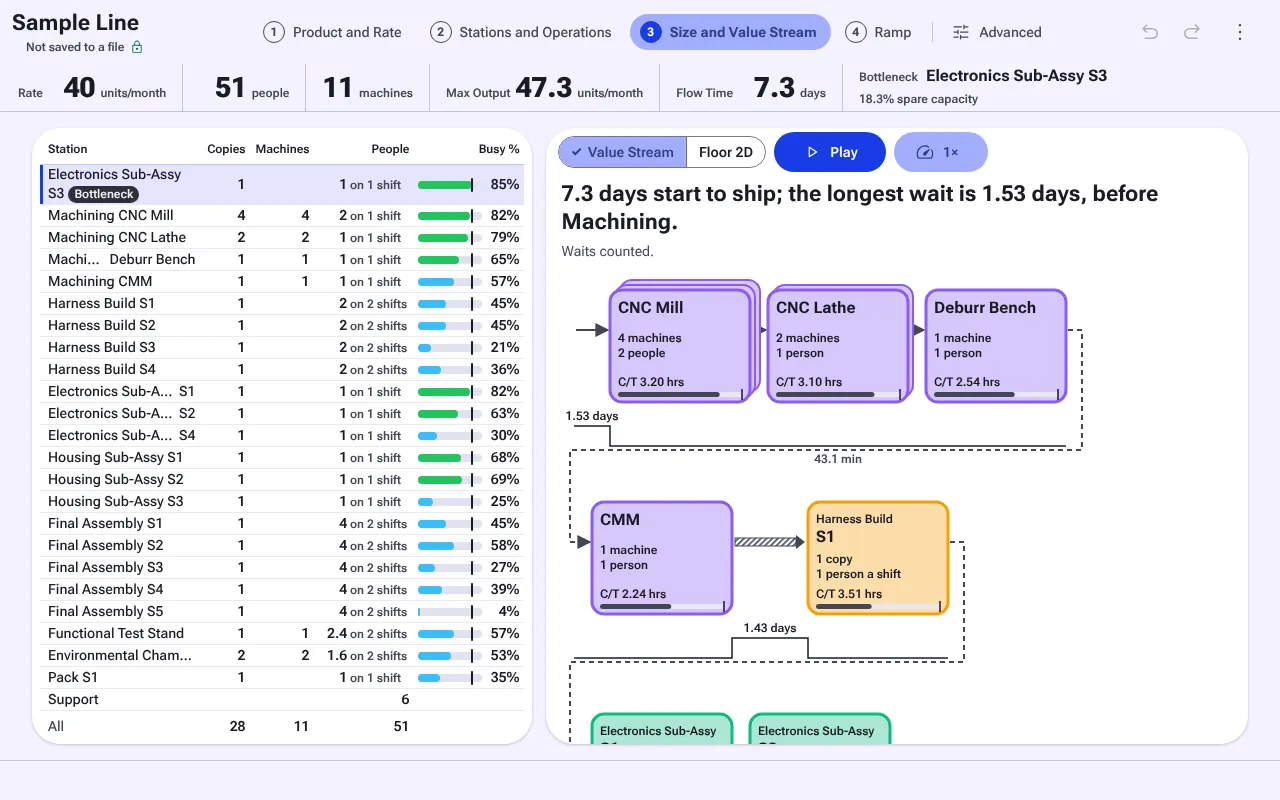
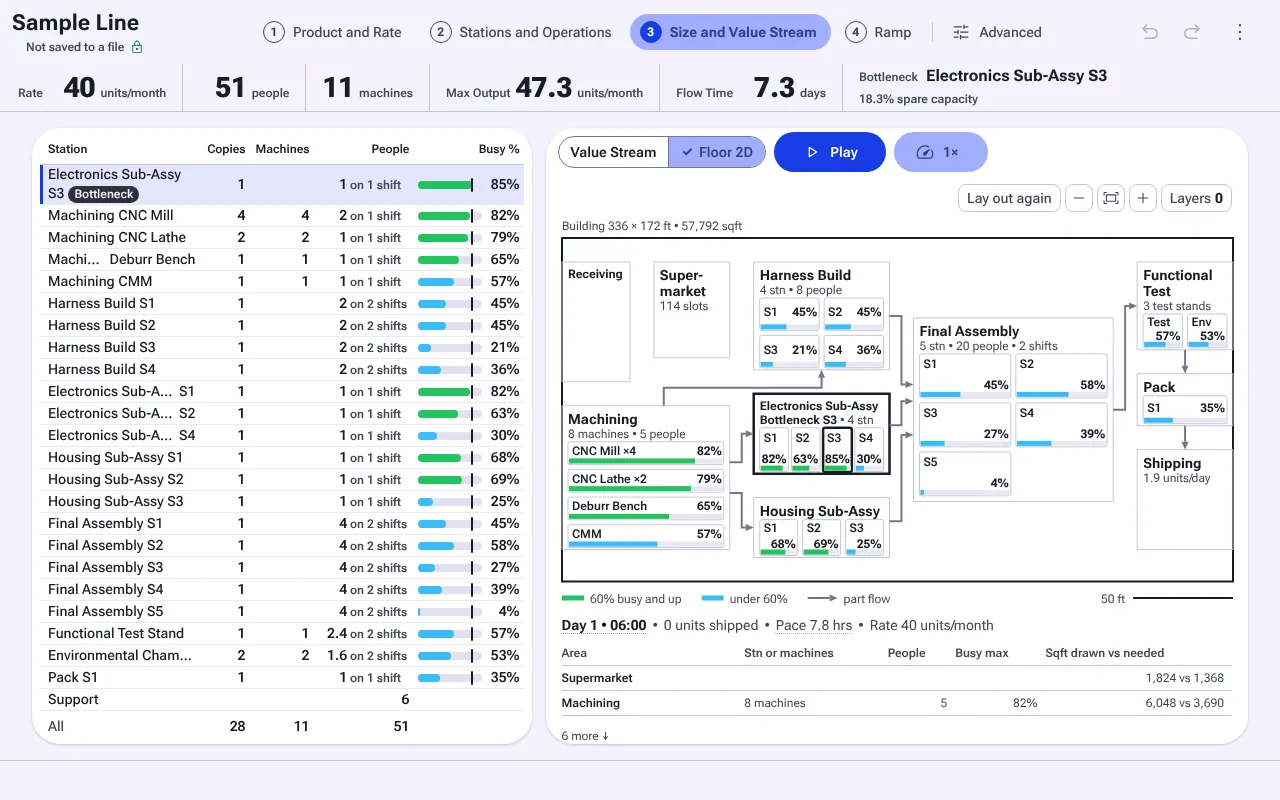
Step 3, Size and Value Stream: one row a station with copies, machines, people on shifts and busy percent, Electronics Sub-Assy S3 first as the Bottleneck, beside the value stream.

3Size and Value Stream

What you type

  • Nothing. This step reads what steps 1 and 2 hold.

What you get

  • One row a station: copies, machines, people on their shifts, and busy % as a bar with a tick at the busy limit.
  • The Bottleneck first, with its spare capacity, and a way past it in words ("a second shift here: +4 people, no new station").
  • The value stream with each wait in days, or the floor in 2D, switched in one click, with Play.
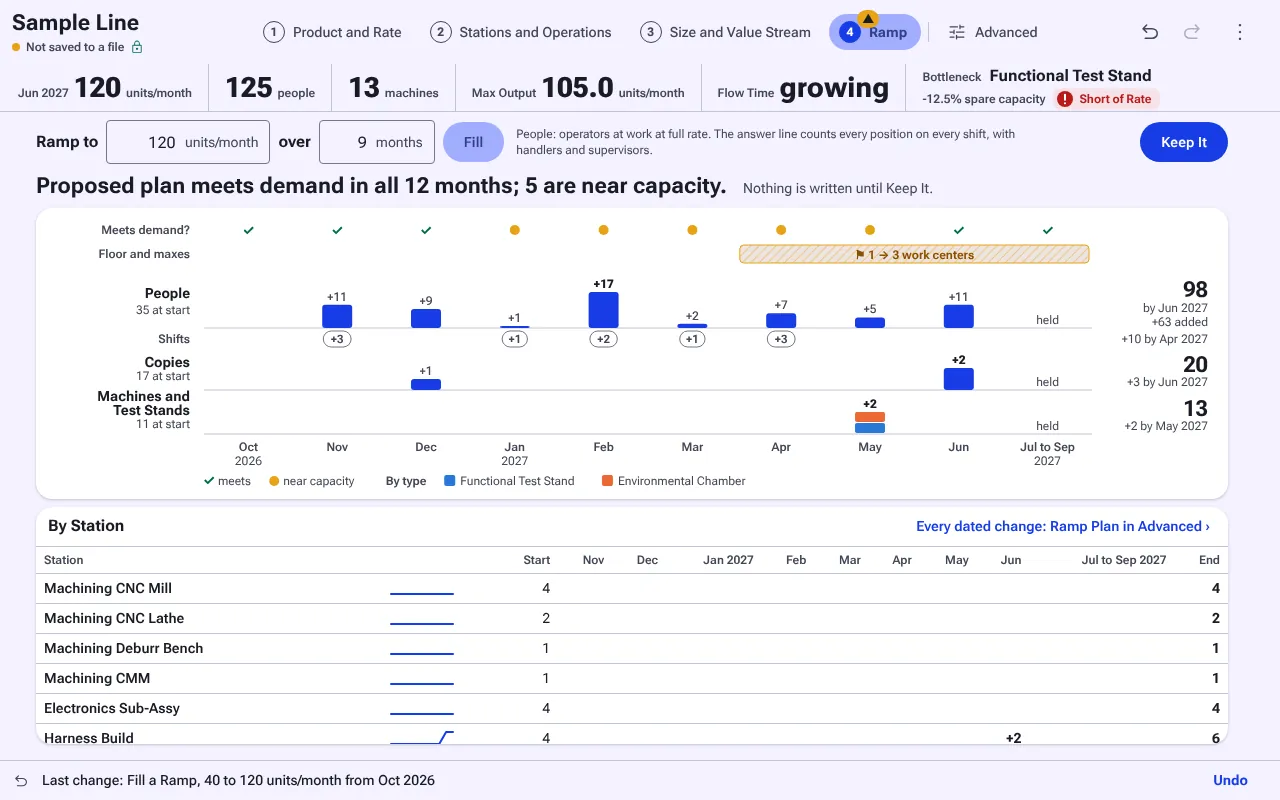
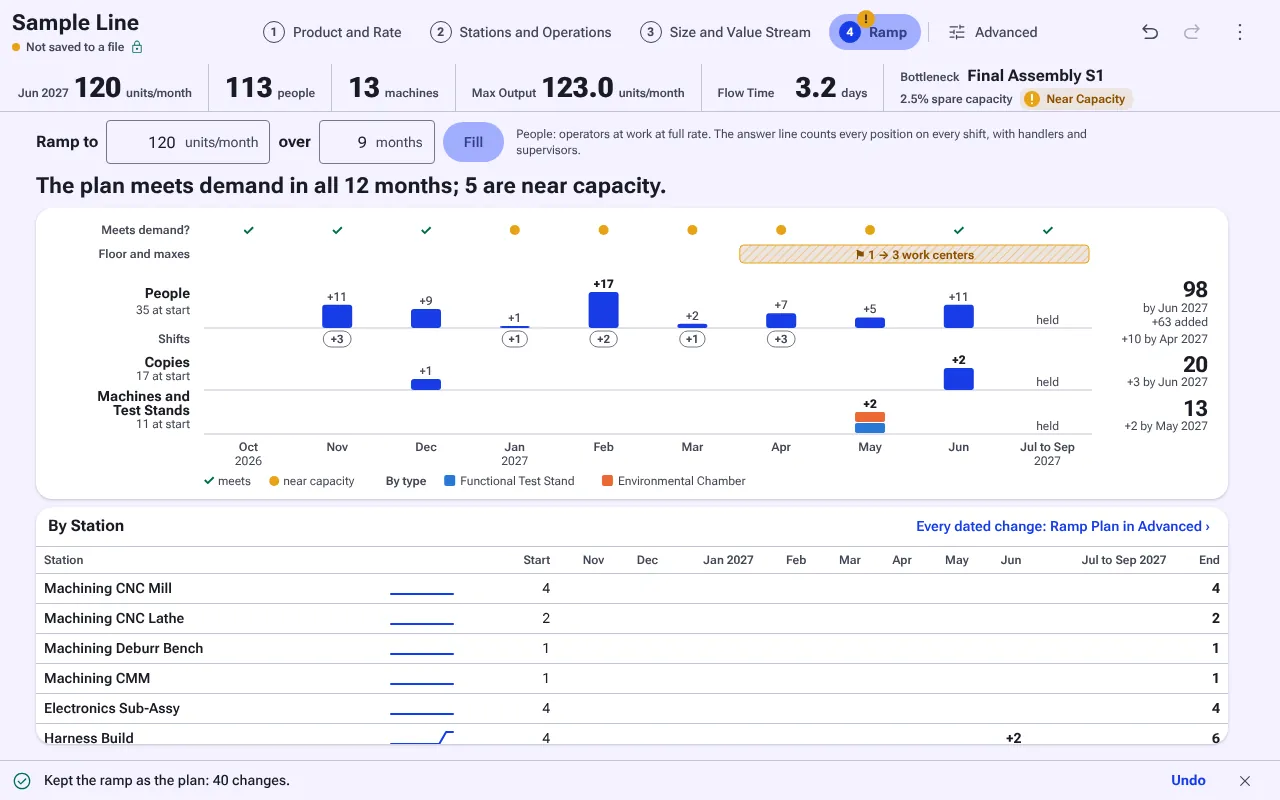
Step 4, Ramp: Ramp to 120 units per month over 9 months, the people, copies and machines each month needs, and the Keep It button.

4Ramp

What you type

  • "Ramp to 120 units/month over 9 months", then Enter.

What you get

  • For each month: the people, copies and machines and test stands that must come online, and whether the month meets demand.
  • The fewest adds that meet every month, drawn at once. Nothing is written until Keep It.
  • With lead times on, the date to act by for each add: "Start 3 people", "Order 1 copy".
Rapid Prototyping

Rapid Prototyping, Feature by Feature

Each of these works on the same model, so you can try a line, change it, and see what moved in the time it takes to type the change.

A new line after 7 routing rows were pasted: seven stations in the routing picture, 14 people, 4 machines, Max Output 49.8 units per month, and the bottom line reading Pasted rows: 7 work centers, 7 ops.

Paste a Routing From Excel

  • Copy work center, operation and hrs columns from a spreadsheet or an ERP export and paste them on step 1's rate. The rows become stations and operations on step 2, as one undo step.
  • Paste before the rate is set and the rows wait: "Pasted 7 rows. Set the rate." They go to step 2 once you type it.
  • A routing of several parts opens Paste Operations so a later BOM import attaches each part. A whole workbook with Parts and Operations sheets imports from Import Spreadsheet.

A 7-row routing pasted on a new line read as a sized line in a median of 0.27 s.2

Step 1 BOM tree zoomed out: Power Supply, Chassis, Heat Sink, Housing Body and End Cover feeding Electronics Module and Housing Assembly, then the Sample Product at 1.92 units a day.

The BOM Tree

  • The tree runs from bought parts on the left to the end product on the right. A simple product is one box.
  • Arrow keys move between cards; Enter or F2 types a name and qty in place. Alt+Left and Alt+Right move a part down or up a level, and a card dragged onto a made part moves under it.
  • Each card shows its own rate per day. All Parts in One Grid holds find, Set for N, paste and CSV.
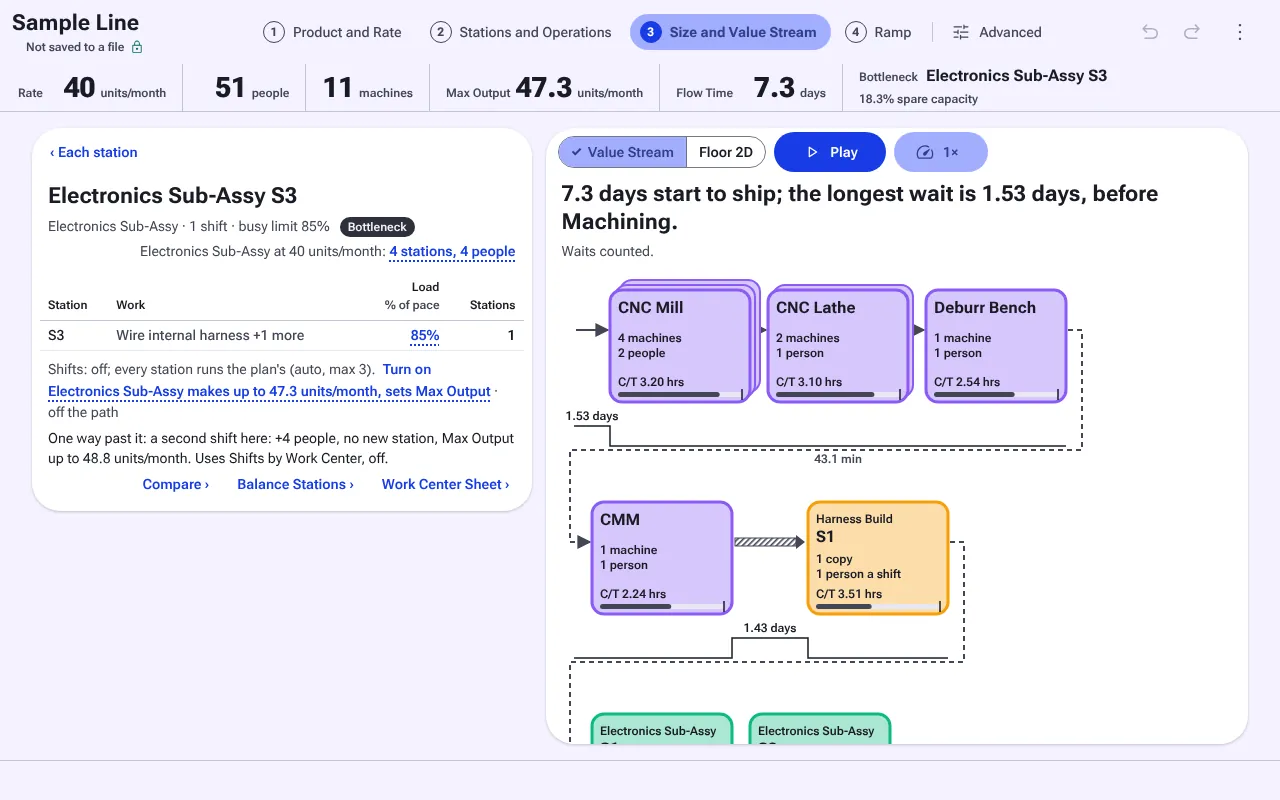
Electronics Sub-Assy S3 opened on step 3: 1 shift, busy limit 85 percent, Bottleneck, load 85 percent of pace, and one way past it: a second shift, plus 4 people, Max Output up to 48.8.

Takt and the Busy Limit

  • Takt comes from the rate and the calendar. Each station is sized so it stays under its busy limit, 85% unless you set another for the line or for one area.
  • Click a row for its math, one line at a time: what the work center needs and why, what it makes, and its days on the path.
  • Where regrouping work would save copies, people or machines, the row says so in words, with Accept and Hide. Nothing changes until you accept.
Step 3 Floor 2D: the building at 336 by 172 ft with Machining, Harness Build, Electronics Sub-Assy, Housing Sub-Assy, Final Assembly, Functional Test and Pack drawn as cards with each station's busy percent, and part flow arrows.

The Floor Lays Itself Out

  • Switch step 3's picture to Floor 2D and the line is laid out from its stations. Each area is a card with its stations, people, shifts and busy %, and part flow runs through the aisles.
  • The layout is never written into your file until you draw the floor by hand (Advanced). Lay out again replaces a drawing with a fresh layout, as one undo step.
  • With Floor Space on, an area that needs more floor than it has says "800 sqft over".

From landing on step 3 to the floor: 1 click.1

The 2D floor while playing: Day 3, 11:55, 4 units shipped, pace 7.8 hrs, rate 40 units per month, with units shown as dots between areas.

Play

  • One Play on the picture's row (Ctrl+Shift+P) moves units across whichever picture shows, the value stream or the floor, on one clock.
  • The play line reads the day, the units shipped and the pace: "Day 3 • 11:55 • 4 units shipped • Pace 7.8 hrs".
  • Use it to show someone how work and material move before the line exists. The figures on the page come from the same sizing.
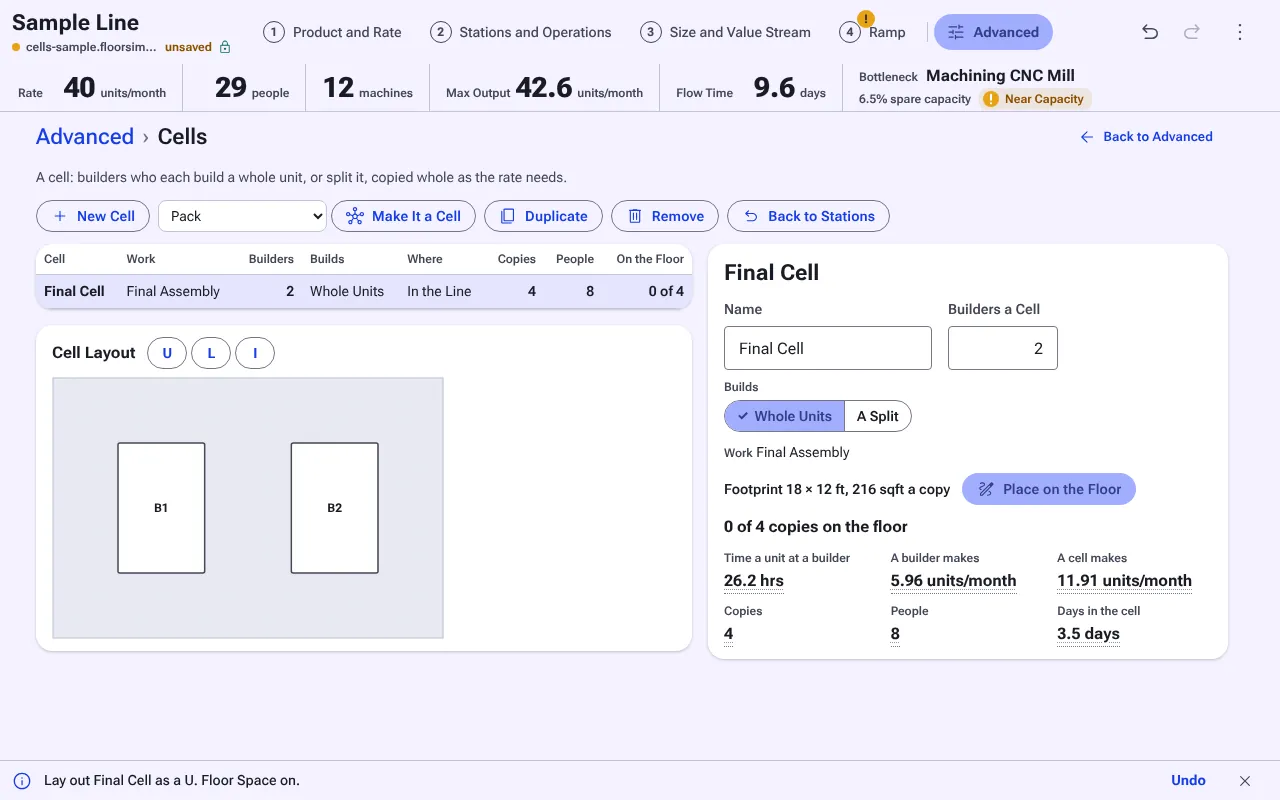
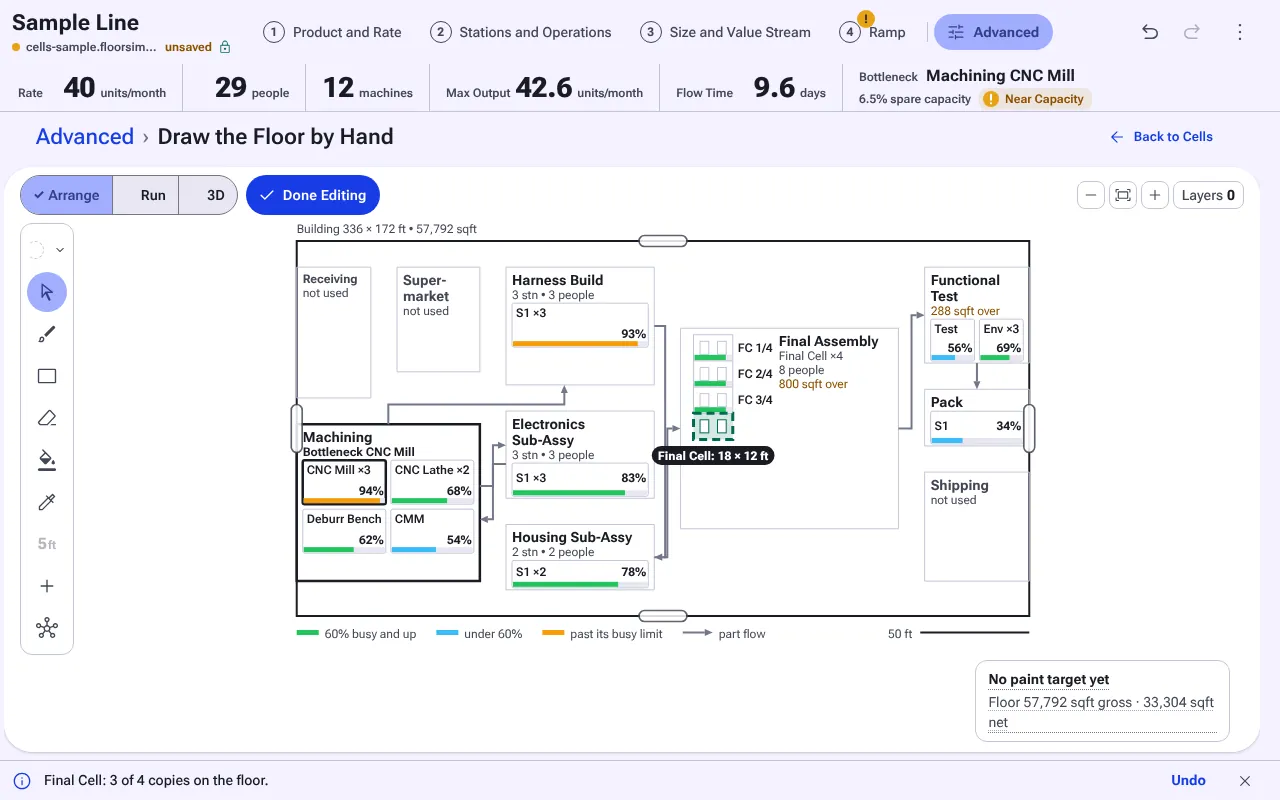
Advanced, Cells: Final Cell made from Final Assembly with 2 builders building whole units, 4 copies and 8 people at 40 units a month, a U layout, and a footprint of 18 by 12 ft. Draw the Floor by Hand with the Final Cell layout in hand: three copies stamped in Final Assembly and the fourth following the pointer, the bottom line reading Final Cell: 3 of 4 copies on the floor.

The Cell Designer and Stamping Cells

  • Make It a Cell takes a people work center's whole work. Set builders a cell and Whole Units or A Split, and the cell is sized to the rate: Final Cell with 2 builders at 40 units/month is 4 copies and 8 people.
  • Lay out one copy as a U, an L or an I on a 1 ft grid, then Place on the Floor. A click stamps a copy; Ctrl+D repeats the last offset to build a row.
  • A copy over a wall, a column, an aisle or another area is refused, and the reason is named. The page reads "3 of 4 copies on the floor".
Step 4 after Keep It: the plan meets demand in all 12 months, Max Output 123.0 units per month at 120, and the bottom line reading Kept the ramp as the plan: 40 changes, with Undo.

The Ramp by Month and Keep It

  • Type the target and the months, and step 4 shows what each month needs by station, with a sparkline of copies by month.
  • While a month is short, the fewest adds that meet demand are drawn at once. Keep It writes them as the plan in one undo step: on the sample, 40 changes.
  • The demand chart, Output Over Time and every dated change are under Advanced, Schedule, Ramp Plan.

Monthly demand in 2 clicks; what to bring online and when, kept as the plan, in 2.6

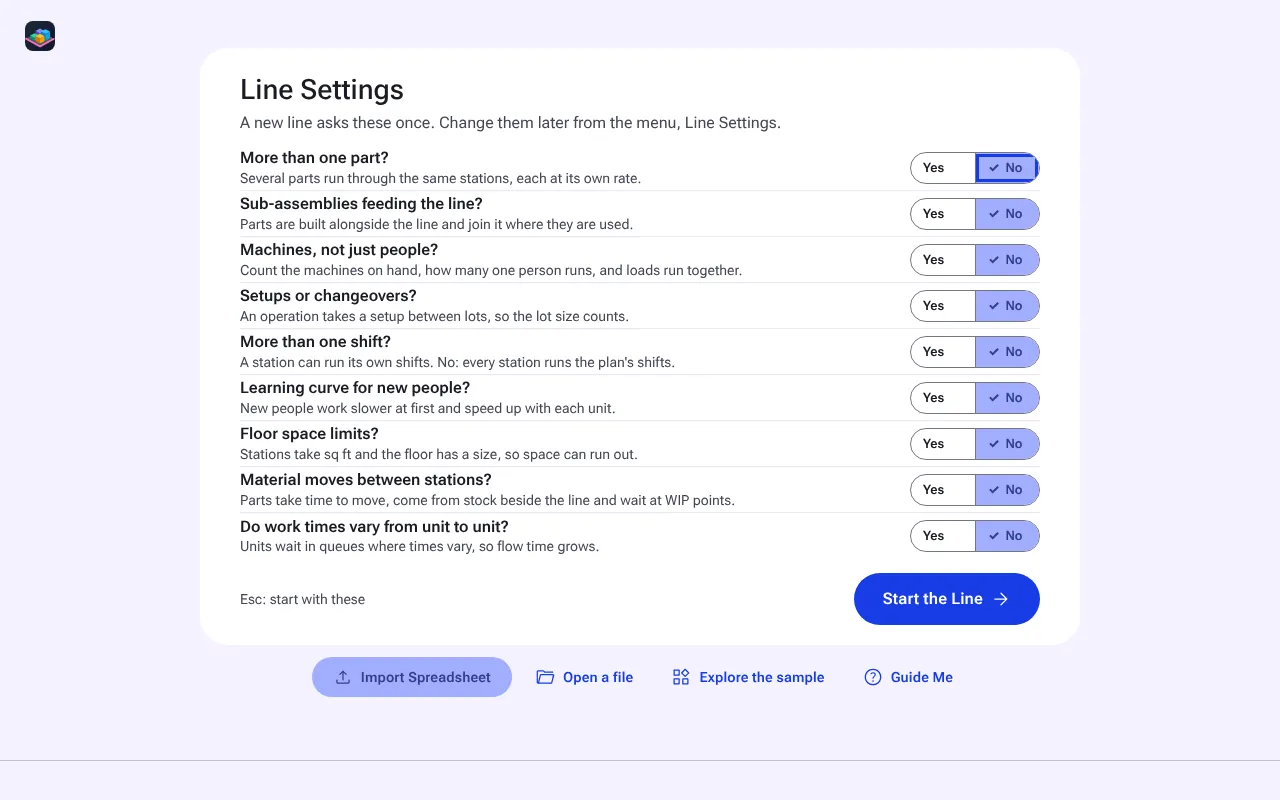
The Line Settings screen: nine yes or no questions, from More than one part to Do work times vary from unit to unit, each answered No, with Start the Line.

Line Settings: Realism Layers Off Until Needed

  • A new line asks nine yes or no questions once: more than one part, sub-assemblies, machines, setups, more than one shift, learning curve, floor space, material moves, and whether work times vary.
  • Every answer starts at No. A setting that is off is one grey row in its own place, such as "Setups: off." with Turn on, and turning it on moves nothing else on the page.
  • So a first answer needs only a rate and work hrs. Detail goes in when the question needs it.
The one-page PDF of the sample: People 51, Machines 11, Max Output 47.3 units per month, Flow Time 7.3 days, the value stream with each area busy percent, and the ramp, on one landscape page.

The One-Page VP PDF

  • Advanced, Present and Share, One Page: the answer line's four figures, a still value stream and the ramp, with the same numbers as the screens.
  • Export PDF prints it as one Letter landscape page. Present opens on it.
  • The 18-page Engineering Report is still there, under the same tool, for the engineering review.

From any step to the one-page PDF: 3 clicks (Advanced, One Page, Export PDF), then the print dialog.7

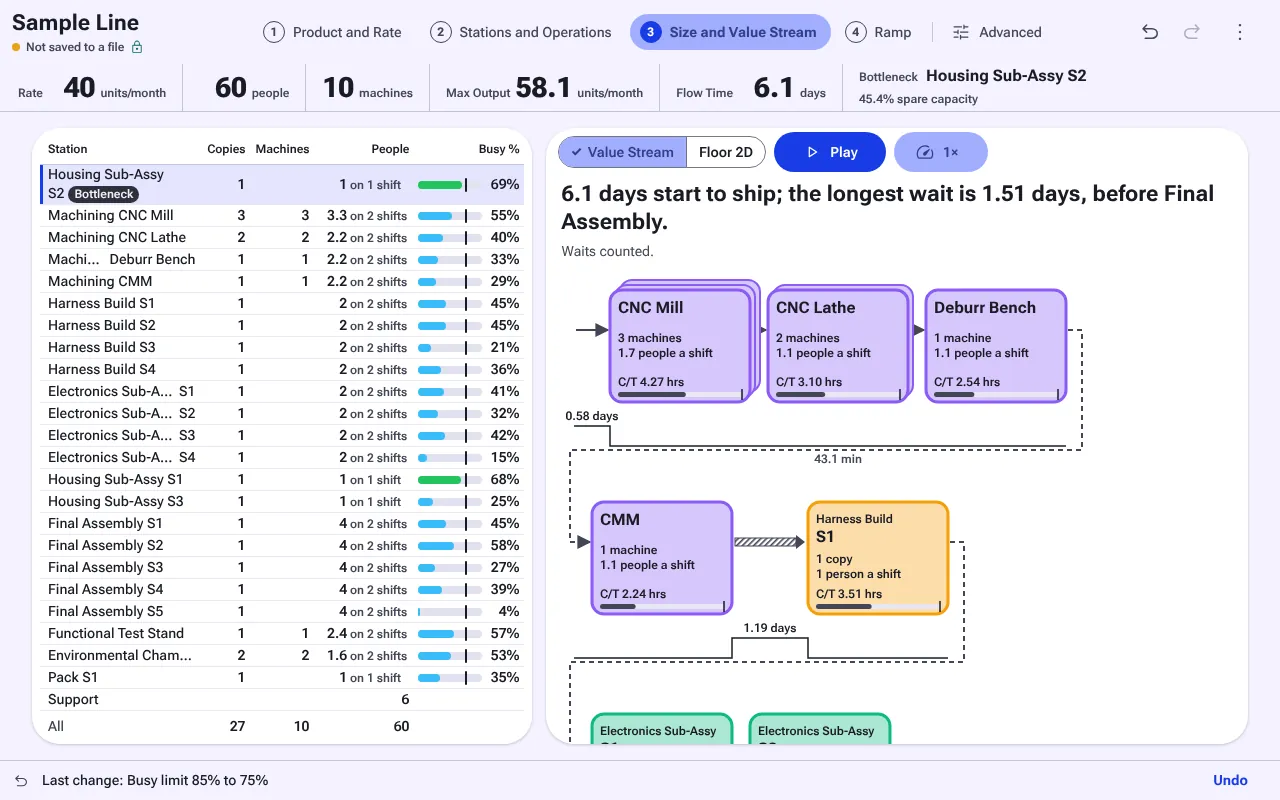
Step 3 after the busy limit was changed from 85 to 75 percent: 60 people, 10 machines, Max Output 58.1, Housing Sub-Assy S2 now the Bottleneck, and the bottom line reading Last change: Busy limit 85% to 75%, with Undo.

Undo Everywhere

  • Every edit is one undo step, named on the bottom line: "Last change: Busy limit 85% to 75%", with Undo. Ctrl+Z and Ctrl+Y work on every step.
  • A figure that changes shows a short highlight where it is and moves nothing, so you see what a change did without hunting for it.
  • Bigger moves are one step too: a pasted routing, Group into an Area, Keep It, a stamped cell.
The About box of the browser page: Sizes a production line from a target rate and each work center's hrs, with the line Runs offline in this browser tab.

Offline Desktop and Connected Editions

  • The Offline Edition is a Windows desktop app (installer or portable exe) and the same app as one HTML page for Chrome or Edge. It never touches the network: no sign-in, no telemetry, no update check.
  • The Connected Edition installs beside it as its own app. Sign-in, organizations and cloud saving come in later phases; until then it reaches nothing either.
  • Both open the same .floorsim files.
Compare

Spreadsheets, DES Packages and Floor Simulator

How each kind of tool generally handles line sizing. Products in each category differ; this is the usual case, not any one product.

QuestionSpreadsheetsDES packagesFloor Simulator
Time to a first answerAs long as it takes to build and check the formulas for this lineModel building and validation come first, before the first runRate and work hrs typed or pasted, then the answer line2
Skills neededSpreadsheet formulas, plus the IE math the sheet has to carrySimulation modeling and the package's own logic; training is usualThe rate, the routing and the work hrs you already have
Changes ripple automaticallyWithin a sheet, where the formulas reach; across tabs and copies, by handYes, after a re-run of the modelYes: people, machines, Max Output, flow time and the Bottleneck on every step
Ramp by monthA separate sheet, built by handPossible as scenarios or time-varying inputs, built into the modelStep 4: each month's adds, and the fewest that meet demand
CellsBy handModeled as resources and logicCell Designer: sized to the rate, laid out, stamped on the floor
A floor drawingA separate drawing in another toolUsually a layout or animation built for the modelLaid out from the stations; draw it by hand when you want to
One-page exportBuilt by hand from the sheetReports vary by packageOne Page, Export PDF7
Works offlineYesDepends on the package and its licenseYes, and the Offline Edition never touches the network

Floor Simulator is a capacity model, not a discrete-event simulation. When a question is about unit-by-unit behavior under variation, a DES model is the right tool, and Floor Simulator's sizing is a quick way to know what to build into it.

Who It's For

Industrial Engineers With a Line to Size

A New Line

You have a product, a routing and a rate, and you need people, machines, floor and a ramp before anything is bought. Paste the routing, set the rate, and step 3 is the first answer; the One Page is the first review.

A Rate Increase

The line exists and the rate is going up. Ramp to the new rate over the months you have, see what each station adds and when, and Keep It as the plan. With lead times on, the hire and order dates come with it.

Cell or Line

Make It a Cell takes a work center's work and sizes cells to the rate, beside the line's own figures. Use in the Line puts the cell in place of the stations, says what that moves, and Back to Stations undoes it.

FAQ

Questions Engineers Ask

How accurate is it, and what does the engine model?

It is a capacity model of the whole line, worked out from formulas, not a discrete-event run. A station's time is the larger of its work split across its people and its longest chain of dependent operations, divided by the area's efficiency. Copies are sized so each station stays under its busy limit. Beyond that it models shifts, machines and test stands, setups and lots, several parts on one line, queue WIP and buffers, kanban and supermarkets, milk runs, carriers, movement, floor space, and the ramp month by month. With "Do work times vary" on, it adds queue waits and the chance a station misses its pace from each operation's variation. The same inputs always give the same answer, and every figure opens its math, one line at a time, so you can check it. It answers sizing questions; it is not built to study rare queue behavior run by run, which is what a DES package is for.

What file format does it use?

Models save as .floorsim files, plain JSON, wherever you choose. 0.5 files open in 0.6 with nothing typed lost. A spreadsheet imports from Import Spreadsheet, or pastes on the rate.

Does my data leave my computer?

No. The Offline Edition blocks the network in five layers and is checked for it on every build: no request, no socket, no telemetry, no crash upload. Your models stay in the files you save. The browser page keeps its autosave in that tab only.

Which edition do I need?

The Offline Edition for most people, and for any site that must stay offline: a Windows installer, a portable exe that runs from a folder or a USB drive, and a one-file browser page for PCs that block new apps. The Connected Edition is for teams that will want cloud saving when it arrives. Both open the same files.

Does it run on a Mac?

The desktop app is for Windows. The browser page runs in Chrome or Edge on Windows, macOS or Linux.

Try It on Your Own Line

Open the sample to see a sized line, or start a new one and paste your routing. Your models stay on your computer as .floorsim files.

PRICE

$249 one-time, single user, launch price. Floor Simulator Classic (0.5.x) included.

One price for Floor Simulator 0.6. Floor Simulator Classic (0.5.x) comes free with it, as a separate download.

See the store page

How We Measured

All figures are from the Floor Simulator 0.6 web build (commit 1ac7136, the same app the desktop edition runs), on the sample line unless named, in headless Chromium at a 1280 x 800 window, measured 27 Oct 2026. Click counts follow one rule: every click counts, a commit counts, a system file pick or print dialog counts 2, and typing into a field counts as no click.

  1. Click counts from the app's own end-to-end test (e2e/clicks.spec.ts), which opens the sample, runs each path, checks the answer is on screen with no scroll and fails if a path takes more clicks than its ceiling. Where Max Output and the Bottleneck are set: 0 clicks. The floor: 1 click.
  2. Timed in the page (performance.now): a new line started with the rate at 40 units/month, a 7-row routing (work center, operation, hrs) pasted on the rate, until the answer line read the sized line (14 people, 4 machines, Max Output 49.8 units/month) and painted. 7 runs: median 0.27 s, slowest 0.28 s. Times depend on the computer.
  3. Timed in the page: the sample on step 1, 60 typed over 40, from Enter until the answer line had finished calculating and read the line sized at 60 (71 people, 10 machines, Max Output 82.0 units/month) and painted. The sample's every station, its value stream and its ramp are worked out again. 7 runs: median 4.8 s, slowest 5.6 s. Times depend on the computer.
  4. From e2e/clicks.spec.ts: the 26 sub-questions of the flow-paths study (what a rate needs, where Max is set, what fixes it, monthly demand, the floor, the PDF and the rest) took 56 clicks in all in the browser page, with 2 scrolls, at the test's ceiling of 56.
  5. The app's screen budget (scripts/budget.mjs) opens each step at 1280 x 800 and at 1100 x 650 on every build and fails a step whose page scrolls at 1100 x 650. It passed on this build, 27 Oct 2026.
  6. From e2e/clicks.spec.ts: monthly demand (step 4, the target box, 120 and 9 typed, Enter): 2 clicks. What to bring online and when, written as the plan (step 4, Keep It): 2 clicks.
  7. Counted with Playwright on the sample by the same rule as e2e/clicks.spec.ts: Advanced, One Page, Export PDF is 3 clicks to the print dialog, which the rule counts as 2 more in the browser page. Printed to PDF, it was one Letter landscape page.